How to Upload Audio Files to Roblox in 2026
By Fridge · Published · Last updated:
Want to know how to upload audio to Roblox? In Fridge's November 14, 2026 walkthrough, you do it from Create on the Roblox website: open Creations, go to Development Items, upload the file, wait for it to process, then copy the asset ID so you can use it in a game. This guide follows that 52-second video and adds the official file rules from Roblox's Creator Hub and Support pages. Last checked .
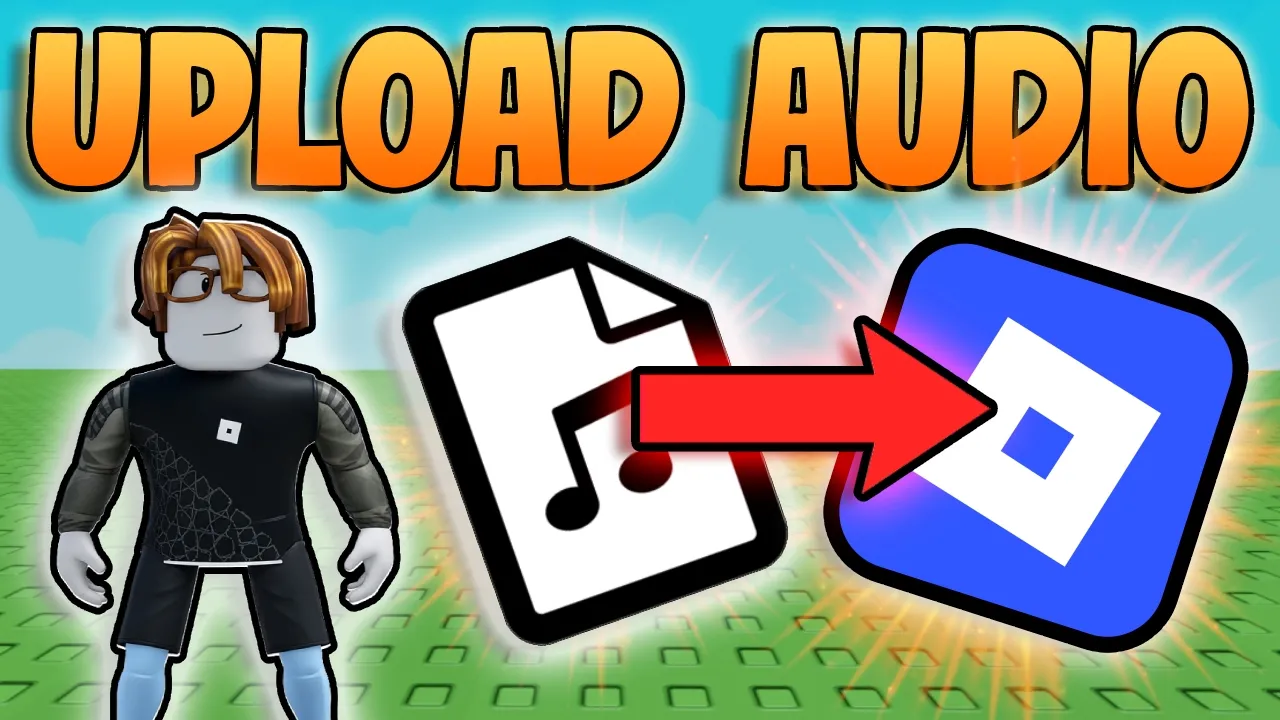
Watch: How to Upload Audio Files to Roblox
Fridge's video, How to Upload Audio Files to Roblox (2026) | Easy Step-by-Step Guide, is a 52-second Create-dashboard walkthrough. It was uploaded on November 14, 2026 at 6:55 p.m. Eastern. YouTube has not published chapter markers. The written steps below follow the video, using its auto-generated captions, plus official Roblox documentation for file limits, moderation, and how an asset ID is used in Studio.
How to Upload Audio on the Roblox Create Page
These are the clicks Fridge shows in the video:
- Go to the Roblox website and sign in.
- Open Create, then open Creations.
- Scroll to Development Items.
- Open Upload assets.
- Choose Browse files, select your audio file, and click Open.
- When the file appears, click Upload one asset and wait while Roblox processes it.
- When processing finishes, copy the asset ID so you can use the sound in a game.
The official Creator Hub dashboard article, updated November 14, 2026, describes the same area: in Development Items, open the Audio tab, click Upload Asset, choose the file, fill in a Name and Description, then click Upload. Fridge's short video does not pause on the Audio tab or the name and description fields, so use those official labels if the page you see does not match the wording in the captions exactly.
Roblox Support's Audio Files article also says you can upload from Create in a web browser after signing in, and it points readers to the Creator Hub import article for format rules.
Official Roblox Audio File Requirements
The video itself does not list file limits. These requirements come from the official Creator Hub Audio assets page (checked November 14, 2026):
| Rule | Official limit |
|---|---|
| Formats | A single track in .mp3, .ogg, .wav, or .flac |
| File size | Less than 20 MB |
| Length | Less than 7 minutes |
| Sample rate | 48 kHz or lower |
| Channels | Mono, or stereo 2.0, 3.0, or 5.1 surround |
| Monthly free uploads | 2,000 per 30 days if you are ID verified; 100 per 30 days if you are not |
If you need the higher monthly cap, complete an official Roblox age check / ID verification. Creator Hub also says uploads go into a moderation queue and stay visible to you in the Audio tab of Development Items. If a file is rejected, check the format, size, length, and sample-rate rules above before trying again.
Uploading Audio From Roblox Studio
Fridge's video covers the website Create flow, not Studio. Official Creator Hub docs say you can also import audio in Studio's Asset Manager: open Asset Manager, click Import, select the files, and confirm. Studio transcodes the audio before saving it. If Studio rejects the file, the docs say the usual causes are a failed transcode or an outdated exporter, and they recommend updating your audio tool and checking the requirements in the table above.
How to Use the Audio Asset ID
Once the upload has finished processing, Fridge shows that you can copy the asset ID and use it in a Roblox game. Official Creator Hub documentation says Studio assigns each imported file a unique asset ID, and that you play a file in an experience by loading that ID on an AudioPlayer object. This page does not invent extra Studio wiring steps beyond what those official docs state.
Creator Hub also notes that imported audio starts private: other users cannot use the ID unless you grant permission. After moderation, you can reuse the asset in your own projects. For a closer look at other creator assets, see the Roblox thumbnails guide.
Sources
Roblox FAQ
How do I upload audio files to Roblox?
On the Roblox website, open Create, then Creations, then Development Items. Choose Upload assets, browse to your audio file, click Upload one asset, wait for processing, and copy the asset ID. Official docs also list an Audio tab, plus Name and Description fields, on the same dashboard.
What audio formats does Roblox accept?
The official Creator Hub Audio assets page lists a single track in .mp3, .ogg, .wav, or .flac, under 20 MB and under 7 minutes, at 48 kHz or lower.
Where do I get the Roblox audio asset ID?
In Fridge's video, the asset ID appears after the file finishes processing, and you can copy it from there. Official docs say each imported audio file gets a unique asset ID for use in your games.
Can I upload audio from Roblox Studio instead?
Yes. Official Creator Hub docs say you can import audio through Studio's Asset Manager with the Import button. Fridge's video demonstrates the Create dashboard path, not Studio.
Is there a limit on how many audio files I can upload?
Creator Hub says ID-verified users can import 2,000 free audio assets per 30 days, and unverified users can import 100 per 30 days.
Can I upload any song to Roblox?
No. Official docs require that you have the legal rights to the audio and that it follows Roblox's Community Rules and Terms of Use.
Found this helpful? Subscribe to Fridge on YouTube for new Roblox videos. This guide is updated with every new upload.